Due to Microsoft’s updated cloud storage model, LSU is optimizing the use of Microsoft 365 (M365) services to remain within Microsoft’s new storage allocation limits and preserve capacity for our academic, research, and administrative needs.
The new policy creates an Archive Mailbox where historical email data can be freely stored to open up space in the primary mailbox.
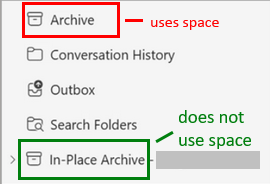
- Note: this is separate from the Archive folder normally seen in the mailbox.
- Archive "Mailbox": friendly name for one of the two names Microsoft may show below (both have the same function).
- In-Place Archive – sometimes utilized by MS
- Online Archive – other times utilized by MS
- Archive "Folder" - your personal Archive folder which takes up storage space
Archiving enables everyone to:
- Easily free up Primary Mailbox storage space, preventing the exhaustion of space in the Primary Mailbox.
- Search for and retrieve specific emails or attachments in the Archive Mailbox.
Long-term Retention of Important Documents
Archiving enables the university to:
- Retain important email content, such as research documents, grant proposals, and other important documents, in a secure location for a long-term period. This can help to ensure that important information is not lost or deleted accidentally and can be accessed by authorized users in the future.
- Store historical email data in a separate location from Primary Mailboxes, freeing up space and improving the performance of the email system.
LSUMail Auto-Archive Rules:
Any content in your Primary Mailbox “Junk” folder will be moved to your Archive Mailbox “Junk” folder after 30 days.
Any content in your Primary Mailbox “Clutter” folder will be moved to your Archive Mailbox “Clutter” folder after 30 days.
Recommended Archive Rules:
Email items can also be moved from the primary mailbox to the archive mailbox automatically, using Archive Polices, to reduce the size and improve the performance of the primary mailbox. See the Microsoft article Archive Older Items Automatically for further information on these rules.
ITS recommends that you look at the email messages you want to keep and make personal rules to migrate that content to the mailbox archive. Examples of folders or content to utilize with personal rules may be:
- Create a rule to archive contents of the Primary Mailbox "Deleted Items" Folder
- Create a rule to archive contents related to listserv
- Create a rule to archive alert messages
Accessing and Using the Archive Mailbox
The only mechanisms for accessing the Archive Mailbox are through the Microsoft Outlook client software or the Microsoft Outlook Web Access web portal.
You may drag and drop messages from .pst files into the archive, for easy online access. See the article Manage email storage with online archive mailboxes for more information.
You may also move email items from the primary mailbox to the archive mailbox automatically, using Archive Polices, to reduce the size and improve the performance of the primary mailbox. See the article Import data from a .pst file using Outlook's Import and Export wizard for more information.
For additional resources, please see the Microsoft article Archive Client and Compliance & Security Feature Details.
Referenced from: Microsoft.com