Printing Instructions for ITS Print Stations
ITS provides printing services at the main LSU Library and several other campus locations, allowing students, faculty, and staff to print documents and assignments as needed.
Anyone with a valid MyLSU Account ID and a Tiger Card can remotely upload documents to any ITS Print Station on campus. Follow the instructions below to learn how to print documents at LSU.
To Print in the LSU Library or at any ITS Print Station:
- Go to print.lsu.edu while on campus and log in with your myLSU credentials. You can navigate to this website on any of the available library computers if you do not have a laptop.
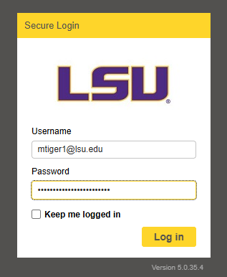
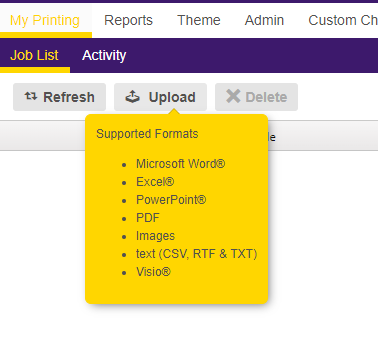
Once logged in, click Upload and select the appropriate file that you wish to print. If the document you are trying to print IS NOT one of these supported file types, you will need to change the file type so that you can upload it to print.lsu.edu. The ITS Print Desk CANNOT edit your documents.
Supported Formats:
- Microsoft Word
- Excel
- PowerPoint
- PDF
- Images
- Text (CSV, RTF & TXT)
- Visio
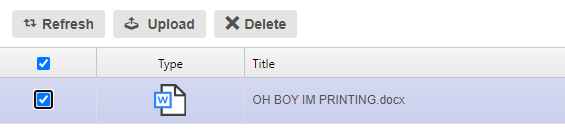
- Once the document has been uploaded, you will see red text that says ‘Processing…’. Once this text goes away, the document will be ready to print in the queue.

Select your document and make sure it is set to the correct print options. These options are in the bottom right corner of print.lsu.edu, and you can change the values after selecting your document.
Available Print Options
- Color - Black and White or Color
- Pages per side - Number of pages printed per single sheet of paper
- Sides - Is document double- or single-sided?
- Copies - Number of copies to print (This will affect the final price)
- Page Range - Specific range of pages from the document to print (optional)
- IMPORTANT: These settings will only change the file as you’ve uploaded it; if you need to adjust words/images to fit the page, you must do this BEFORE uploading.

After you have successfully uploaded the document and set the print options, you will need to go to one of the ITS Print Stations below. The print stations in the LSU Library, Room 141, are located along the windows and near a column in the middle of the Computer lab.
- Once at the printing station, swipe your Tigercard using the card reader. This will sign you into the print station and allow you to select documents for printing or click “Print All.”
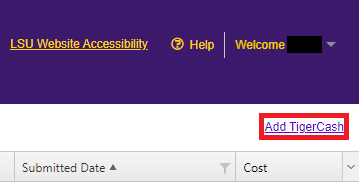
NOTE: If you need to add TigerCash to your account to pay for your print job, click the "Add TigerCash" button in the top-right corner of the print.lsu.edu website or visit tcard.lsu.edu. Follow the steps on the Tiger Card Office Website to add funds to your account. Please see the Printing On Campus Overview Page for print job rates or Tiger Card Services (or tcard.lsu.edu) for further questions about your Tiger Card or adding TigerCash.
- After selecting your document, your document should print when it is next up in the queue. If you receive any printer errors not related to the steps listed above, please go to the ITS Print Desk in the LSU Library, Room 141, or Julian. T. White, Room 215 for printing assistance.
20582
9/2/2026 3:36:50 PM